
Download coconutWiFi – instant Wi‑Fi range detection, detailed network info, free Mac tool
Overview
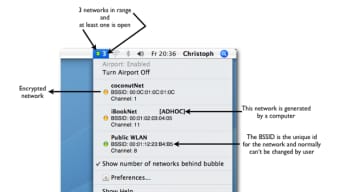
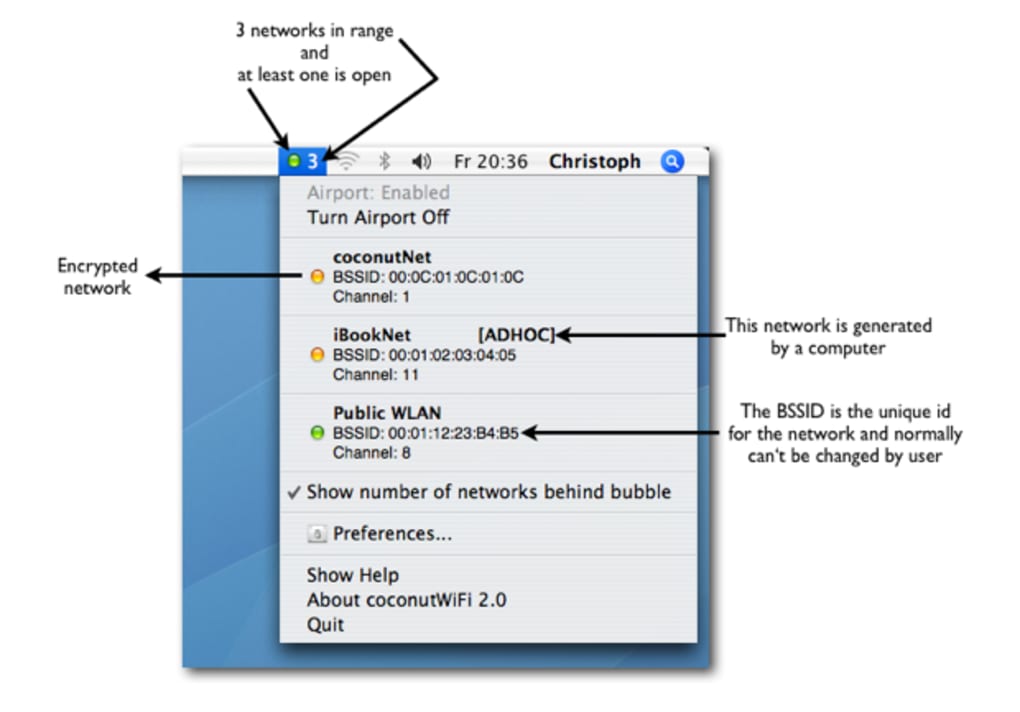
coconutWiFi is a lightweight menu‑bar utility for macOS that lets you see, at a glance, how many wireless networks are within range and whether any of them are open, encrypted, or experiencing interference. Instead of digging through the built‑in Airport diagnostics, coconutWiFi places a small, color‑coded bubble right in the menu bar. A green bubble means an unencrypted, open network is nearby – perfect for a quick connection when you’re on the move.
Yellow signals that only secured networks are present, while red warns that no networks are detectable or that the signal is weak. Clicking the bubble expands a drop‑down list that reveals each network’s SSID, signal strength, channel, BSSID (MAC address), and encryption type. The UI has been completely rewritten for speed, delivering a snappier experience than the original version. coconutWiFi also adds a handy Airport power‑toggle, letting you enable or disable Wi‑Fi without opening System Preferences.
Whether you’re a traveler needing to spot public hotspots, a network admin checking channel distribution, or a privacy‑concerned user who wants to avoid unsecured Wi‑Fi, coconutWiFi gives you actionable data in seconds. The app is free, updates automatically through the Mac App Store, and respects macOS security standards, ensuring a secure download and operation.
Key Features
- Real‑time menu‑bar indicator with color‑coded status (green, yellow, red).
- Shows the exact number of wireless networks currently in range.
- Drop‑down list provides SSID, signal strength, channel, and BSSID for each network.
- Identifies open (unencrypted) networks instantly.
- Snappier UI built on a completely rewritten core for faster refresh rates.
- One‑click Airport power control directly from the menu bar.
- Automatic updates via the Mac App Store – always up to date.
- Free to download and use with no hidden fees.
- Lightweight footprint – consumes less than 5 MB of RAM.
- Secure code signing and sandboxing in line with Apple’s security policies.
Installation, Usage & Compatibility
Installing coconutWiFi is as simple as any other Mac App Store application. Open the App Store, search for “coconutWiFi,” and click the Get button. The download size is under 10 MB, and the installation process completes in under a minute on modern hardware.
Once installed, the app automatically adds its bubble to the menu bar on first launch. No additional configuration is required, but you can fine‑tune the preferences by opening the Settings window (accessible via the bubble’s gear icon). Here you can choose whether the bubble shows signal strength percentages, enable audible alerts for new open networks, or set the refresh interval (default is every 5 seconds).
coconutWiFi is built for macOS 10.12 Sierra and later, including the latest macOS Ventura releases. The app runs natively on Intel and Apple Silicon (M1/M2) Macs, thanks to universal binaries provided by the developer. While the primary interface lives in the menu bar, a hidden background service monitors Wi‑Fi changes continuously, ensuring the bubble reflects the current state even when you switch between Wi‑Fi adapters (e.g., external USB dongles).
Supported operating systems: macOS 10.12 – 13.x (including Ventura, Monterey, Big Sur, and Catalina). No Windows, Android, or iOS versions are available at this time.
To use coconutWiFi, simply click the bubble. A drop‑down appears, listing each detected network with columns for SSID, signal strength (bars), channel, and BSSID. Hover over any entry to see a tooltip with additional details such as encryption type (WPA2, WPA3, or open).
If you spot a green bubble, you can click the network entry to copy the SSID to the clipboard for fast pasting into your preferred Wi‑Fi manager. The built‑in Airport toggle lets you disable Wi‑Fi instantly—useful when you want to conserve battery or avoid unwanted connections. The app also respects macOS privacy prompts; the first time it accesses Wi‑Fi data, you’ll be asked to grant “Network” permissions, after which coconutWiFi operates silently in the background.
Pros, Cons, FAQ & Final Verdict
Pros
- Instant visual cue for network availability and security status.
- Provides detailed technical data (channel, BSSID) without leaving the menu bar.
- Zero‑cost, with regular automatic updates.
- Very low resource usage – ideal for older Macs.
- One‑click Wi‑Fi power control saves time.
- Works flawlessly on both Intel and Apple Silicon Macs.
Cons
- Limited to macOS – no Windows, Android, or iOS counterpart.
- Does not include advanced network diagnostics (e.g., packet loss, latency).
- Relies on the built‑in Airport framework; cannot detect hidden networks unless they broadcast SSID.
- Customization options are modest compared with full‑featured network suites.
Frequently Asked Questions
Is coconutWiFi safe to download?
Yes. The app is distributed through the official Mac App Store, is code‑signed by the developer, and runs inside Apple’s sandbox, meeting all macOS security requirements.
Can coconutWiFi detect hidden (SSID‑cloaked) networks?
No. The utility only shows networks that broadcast their SSID. Hidden networks will not appear in the drop‑down list.
Does coconutWiFi work on Apple Silicon Macs?
Absolutely. The developer provides a universal binary, so the app runs natively on M1, M2, and later Apple Silicon models.
How often does the network list refresh?
By default, coconutWiFi refreshes every 5 seconds, but you can change the interval in the Settings panel to suit your needs.
Is there a paid version with extra features?
Currently, coconutWiFi is completely free. The developer has indicated that future premium features may be introduced, but at the moment there is no paid tier.
Conclusion & Call to Action
If you spend any time on a Mac and need a quick, reliable way to monitor nearby Wi‑Fi networks, coconutWiFi delivers exactly what you need – a lightweight, always‑visible indicator paired with detailed technical data. Its free price tag, minimal system impact, and seamless integration with the macOS menu bar make it a must‑have tool for travelers, IT professionals, and privacy‑conscious users alike. Download coconutWiFi today from the Mac App Store, enable the menu‑bar bubble, and start seeing your wireless environment in real time. Stay informed, stay secure, and never miss an open hotspot again.







